


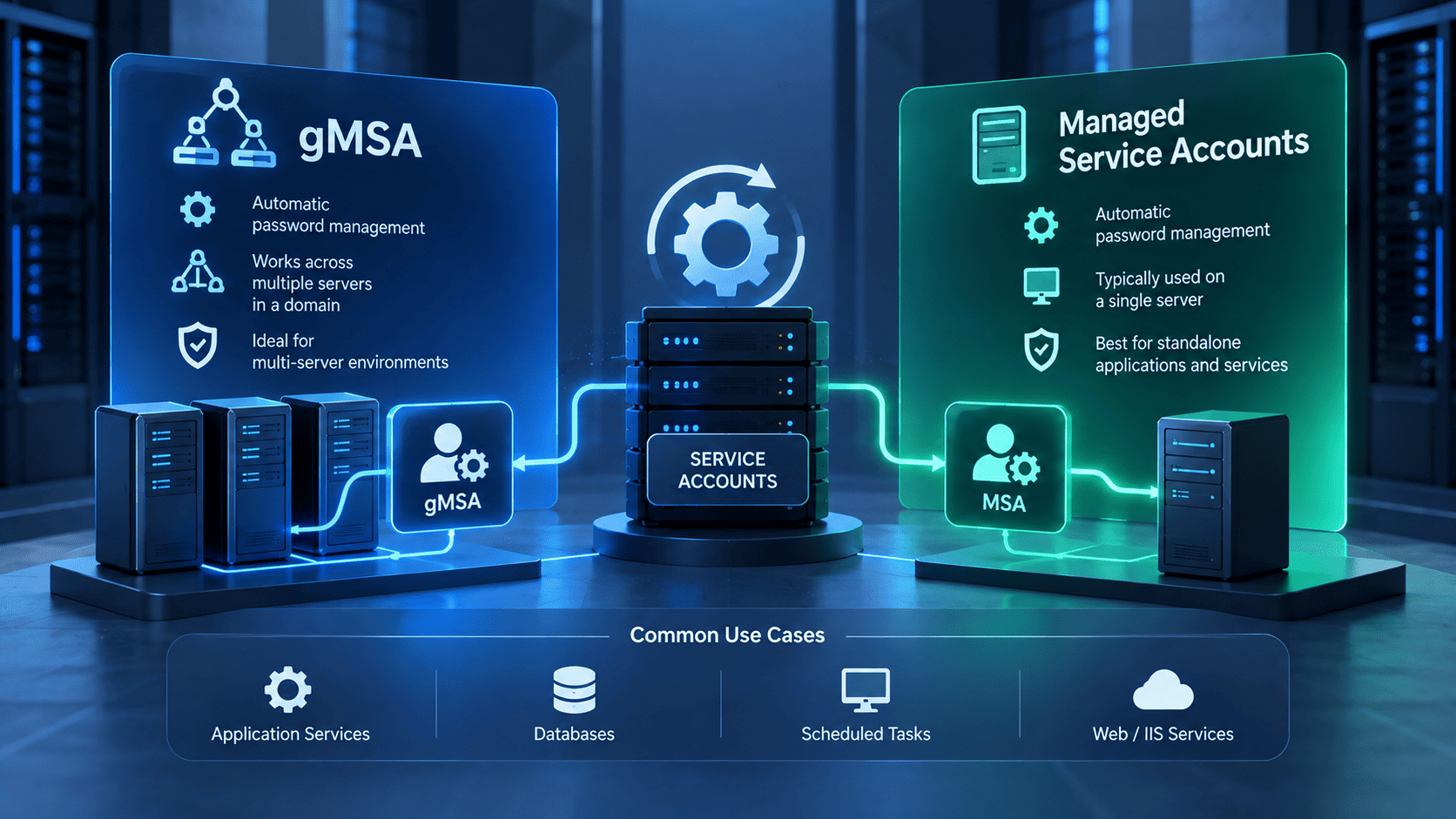

Managing service accounts can be difficult when passwords need regular updates. A gmsa makes this easier by allowing Windows to create and manage the account password automatically. This reduces manual work and lowers the risk of password leaks or service failures.
Unlike a standard MSA which is linked to one server a gMSA can work across multiple approved servers. It is useful for Windows services scheduled tasks web farms SQL Server applications and other enterprise workloads. Admins can control which computers use the account and review its permissions.
Overall this approach helps organizations improve security while making service account management simpler.
What Is a Managed Service Account (MSA)?
A Managed Service Account (MSA) is an Active Directory account built to run services and scheduled tasks. The simple idea is to let Windows handle the password instead of making an admin remember it. This makes a windows service account much easier and safer to manage.
- Less Password Work. Windows creates a strong password for the MSA and changes it automatically. Admins do not have to remember it or worry about changing it and accidentally breaking a service.
- Built for Services. MSAs are made for applications and services rather than people. Before MSAs came along, admins often used normal domain accounts and had to manage their passwords by hand. Many of these accounts ended up with passwords that were rarely changed because no one wanted to risk downtime.
- Made for One Server. A standard MSA is tied to one computer. That works well for a service running on a single server but becomes a problem when the same service needs to run across several machines.
- gMSA Solves That. Microsoft introduced the group managed service account (gMSA) to handle services that run across multiple servers. It keeps the automatic password management of an MSA while allowing approved computers to use the same service identity.
How gMSA Works With Active Directory and Windows Server
A managed service account is built around one simple idea. Windows takes care of the password so admins have one less thing to worry about. It keeps service credentials safer without adding another task to an already long list of things admins have to manage. The main difference is where the account can be used.
Standard MSA
A standard MSA is a good choice when a service runs on just one server. Once it is set up the password work happens quietly in the background. This means there is less chance of a forgotten password causing trouble later.
- One Server. An MSA is tied to a single computer. It works well for services that do not need to move between different machines.
- No Manual Passwords. Windows creates and changes the password automatically. Admins do not have to store it somewhere or worry that changing it will suddenly stop a service.
Group MSA
A gMSA is made for services that need to run across multiple servers. It keeps the same hands-off password management while giving approved machines access to one shared service identity.
- Multiple Servers. A gMSA can be used by several authorized computers. This makes it a natural fit for server farms and other setups where a service needs to run on more than one machine.
- Less to Maintain. Windows continues to handle the password in the background. Admins only need to decide which computers can use the active directory service account.
gMSA vs. Traditional Service Accounts
A gmsa vs service account comparison mostly comes down to who manages the password. With a traditional service account an admin has to create the password and remember to change it. With gMSA Windows handles that work in the background so there is much less room for human error.
Traditional Service Accounts
A traditional service account is usually a normal Active Directory user account used to run a service. The problem starts when that account becomes part of scripts and server settings because changing its password can break the services that depend on it.
- Password Risks. Many admins set these accounts to never expire because changing the password feels risky. Over time the password may end up in scripts or configuration files or be shared with other team members.
- Shared Credentials. The same account may be reused for several services because creating and managing new accounts takes time. If that password is ever exposed one compromised account can put multiple services at risk.
gMSA
A gMSA takes much of this password work away from the admin. Active Directory creates and rotates a strong password automatically and the password is never meant to be known or handled by people.
- Automatic Protection. Windows manages the password and retrieves it when the service needs it. This removes the fear of changing passwords because rotation happens automatically in the background.
- Clear Access Control. Admins can decide which computers are allowed to use the account. This gives better control over where the managed identity can be used and makes it easier to see which machines have access.
gMSA Use Cases for Windows Services and Enterprise Applications
gMSA is useful when a service needs the same trusted identity across one or more Windows servers. It is a good choice when the service needs Kerberos or access to other resources in the domain. Windows handles the password in the background so admins do not have to keep managing it.
- Windows Services and Web Farms. gMSA works well for Windows services and scheduled tasks that need to access network resources. It is also useful for IIS web farms where several servers need the same identity for Windows Authentication and Kerberos. This keeps authentication working the same way across the whole farm.
- Database Access. Applications can use gMSA to connect to SQL Server with Windows Authentication. This means there is no need to keep database passwords in connection strings or manually manage a sql server service account password.
- Enterprise Applications. gMSA fits applications that run across several servers such as business apps and middleware. If the application supports gMSA it can use one trusted identity across the environment without the usual password work.
- Windows Containers. gMSA can help Windows applications inside containers connect to Active Directory. Platforms such as Azure Kubernetes Service support gMSA for Windows containers so applications can use domain authentication without requiring every container host to be domain joined.
gMSA vs. Azure Managed Identity
gMSA and azure managed identity solve a similar problem. Both let services and applications authenticate without someone having to manage a password. The big difference is where they are meant to work.
gMSA is made for Active Directory domain-based workloads, including supported Windows and container environments. Azure Managed Identity is made for Microsoft Entra-based identities linked to Azure resources.
- Different Environments. gMSA depends on an on-premises Active Directory domain and works with services such as Kerberos. Azure Managed Identity is part of Microsoft Entra ID and is designed for Azure resources such as virtual machines and App Services. The two are not direct replacements for each other.
- No gMSA in Entra ID. A traditional on-premises Active Directory gMSA is not synced to Microsoft Entra ID as a regular cloud identity through Microsoft Entra Connect. However, gMSAs are also supported in Microsoft Entra Domain Services.
- Two Managed Identity Types. Azure offers system-assigned and user-assigned managed identities. A system-assigned identity belongs to one resource and is removed when that resource is deleted. A user-assigned identity is separate and can be used by multiple Azure resources.
- Choosing the Right One. Use gMSA when a service needs to work with on-premises Active Directory. Use Azure Managed Identity when an Azure workload needs to access cloud services without storing credentials in code or configuration.
gMSA Security Benefits and Limitations
gMSA makes service accounts safer by taking password management out of human hands. Windows creates and changes the password automatically so admins do not have to store it or remember when it needs to be changed. It also works well for Kerberos based services that run across multiple servers.
- Safer Credentials. The gMSA password is created and managed by Active Directory. Automatic password rotation can reduce the time a stolen password remains valid. However, it does not remove the risk of misuse while the password is still valid.
- gMSA also helps keep Kerberos authentication more reliable across servers.
- Some Setup Is Required. gMSA needs a supported Active Directory environment and Windows Server 2012 or later domain controllers. The first setup can also take time because the KDS Root Key needs to be ready before gMSA accounts can be used.
- Permissions Still Matter. gMSA protects the account password but it does not decide what the account can access. If an admin gives the account too many permissions it can still become a security risk. Regular permission reviews and audit logs are important especially for sensitive resources.
gMSA is a strong option for managing non-human identities such as Windows services, scheduled tasks, applications, and automated workloads without relying on manually managed passwords.
How to Create and Configure a gMSA
Setting up a gMSA may look like a lot at first but the actual process is quite straightforward. Once the initial setup is done Windows takes over most of the password work. That means fewer things for admins to remember and fewer chances of a service breaking because of an old password.
- Prepare the Domain. Start by checking if the domain already has a KDS Root Key. If it does not you can create one with PowerShell. After creating the KDS Root Key, wait for it to become available on the required domain controllers before creating and using the gMSA. The time needed depends on how the key was created and your Active Directory environment.
- Create the gMSA. Create a security group and add the servers that need to use the account. Then create the gMSA and set the required properties, such as SPNs or Kerberos encryption settings, when the service needs them. Only those approved computers should be allowed to retrieve the managed password.
- Install and Test. Install the gMSA on each server with Install-ADServiceAccount and run Test-ADServiceAccount to make sure everything works. For a Windows service you can select the gMSA under Log On As and leave the password blank. For containers the same identity can be provided through a credential specification file.
gMSA Best Practices for Service Account Security
gMSA helps make service accounts safer by managing passwords automatically. But creating a gMSA is only the first step. Strong security also depends on how the account is scoped, monitored and maintained.
- Access Control. Create a separate security group for each gMSA. Add only the servers that need to use that account. This limits the impact of a compromised server. Review gMSA permissions regularly and remove access that is no longer needed. Send important gMSA activity to a central security tool such as Microsoft Sentinel so unusual activity can be detected early.
- Secure Configuration. Use strong Kerberos encryption such as AES128 and AES256. Avoid older encryption types when they are not needed. The default password rotation period is 30 days and works well for most environments. Sensitive systems may use a shorter period with ManagedPasswordIntervalInDays. Keep this setting aligned with your security policy.
- Testing and Naming. Use a clear naming standard for gMSAs. Keep gMSA names within the naming rules of Active Directory and any systems that use the account name. A short name should make the team and purpose easy to understand. Before using a gMSA in production run Test-ADServiceAccount on every target server. Test it again after major Active Directory changes or policy updates. This helps prevent password retrieval issues from causing service outages.
gMSA vs. Other Service Account and Workload Identity Options
No single identity option works for every workload. The right choice depends on where the service runs and how it needs to authenticate. Choosing the right identity also means reducing the risk of passwords and long lived credentials.
- Windows Service Accounts. sMSA works well when a service runs on one server. gMSA is better when the same service runs on multiple servers. Traditional service accounts need manual password management and create more security risk. Use gMSA where the application supports it.
- Azure Identities. Azure Service Principals are useful when an application needs an identity in Microsoft Entra ID. They often rely on secrets or certificates that teams must protect and rotate. Managed Identity is usually safer for workloads running in Azure because there are no credentials for the team to manage.
- Workload Identity Federation. Workload identity federation is built for modern cloud and container workloads. It uses short lived tokens instead of storing long lived passwords or keys. This lowers the chance of credential theft and works well with Kubernetes and CI/CD workloads. Use gMSA for Windows and Active Directory workloads and use workload identity federation when the workload is cloud native or runs across multiple cloud platforms.
Managing digital access securely through modern identity and access management tools removes the burden of manual credential handling. Infisign UniFed provides advanced customer identity management to protect applications without adding friction for users.
- Unified single sign-on allows users to log in just once to access multiple downstream applications seamlessly.
- Passwordless and biometric authentication protect systems from malicious bot attacks while keeping login fast.
- Automated compliance controls come built-in to easily meet strict regulatory standards like HIPAA and SOX.
- Scalable architecture handles millions of identities smoothly without forcing teams to re-architect their entire backend.
Protect every identity with Infisign. Make secure access simple and effortless. Click here to learn more.
FAQ
What is a gMSA used for?
A Group Managed Service Account can run supported Windows services and scheduled tasks across multiple servers. It provides domain authentication and manages the password automatically, so administrators do not need to manage the account password manually.
Is a gMSA better than a service account?
A gMSA can reduce the work and risks linked to manually managed service account passwords because Windows manages the account password automatically.
Can SQL Server use a gMSA?
Yes, supported SQL Server deployments can use gMSAs for SQL Server services and SQL Server Agent, including supported Always On setups. This depends on the SQL Server and Windows Server versions being used.
Does a gMSA require Active Directory?
Yes, it relies entirely on Windows Server Active Directory and a Key Distribution Service root key to generate and distribute credentials.
Does a gMSA automatically change its password?
Yes, Windows automatically rotates the complex password every thirty days by default without requiring any manual work from administrators.


