


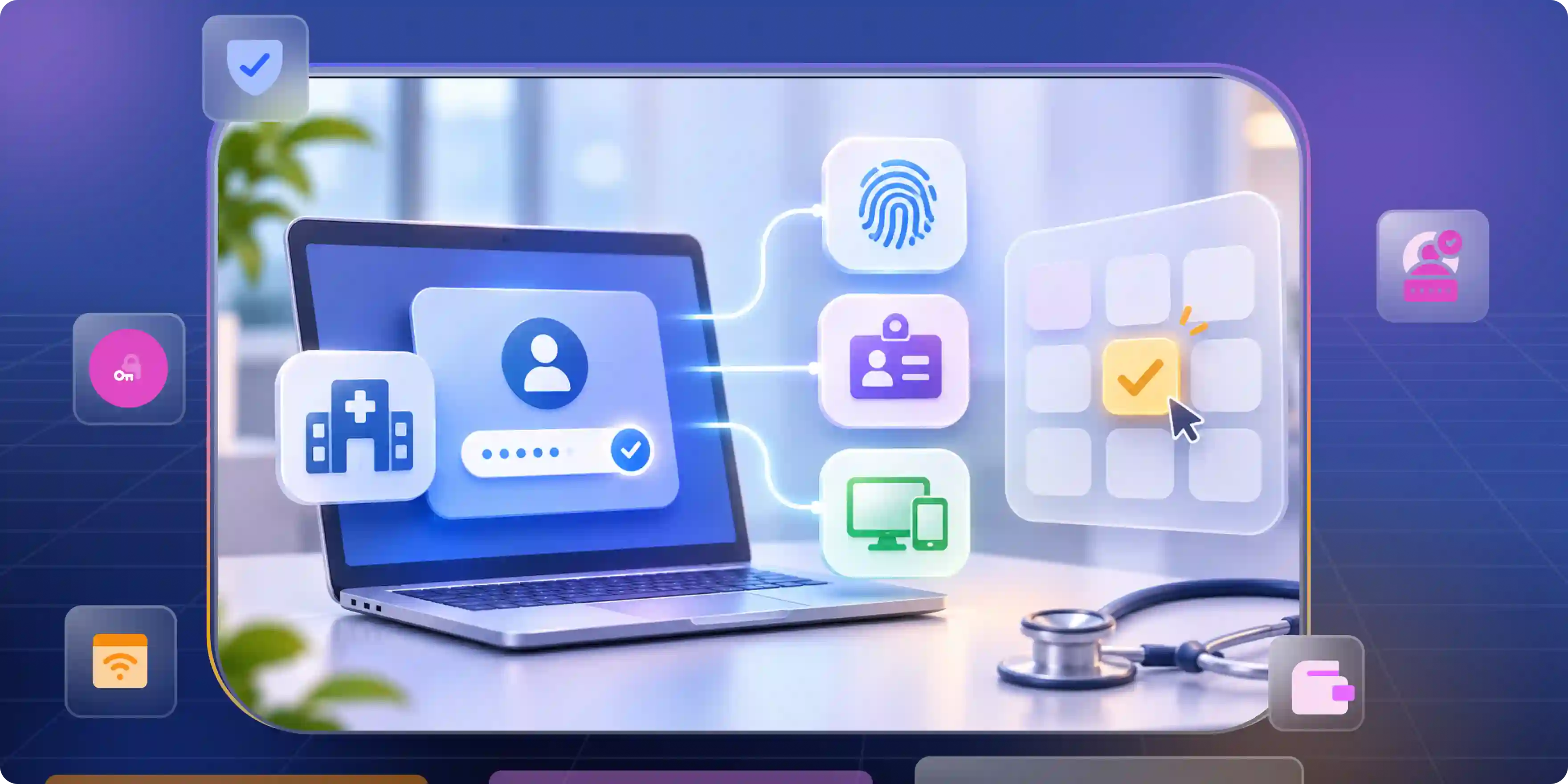
Hospitals need a fast, safe way for doctors and nurses to sign in. Shared computers slow them down when staff must enter passwords again and again. Imprivata OneSign helps, but it may not fit every hospital’s needs or budget.
Teams comparing imprivata competitors need to know which tools match their setup. A basic login tool may not support badge taps, quick user changes, or safe sign-ins on shared clinical computers during busy shifts. Before switching, hospitals should check which features staff rely on every day.
Why Teams Start Shopping for Imprivata Alternatives
Hospitals usually have a reason for looking beyond OneSign. The cost may be too high, the current setup may not work well with other systems, or the IT team may want fewer tools to manage.
Before comparing imprivata alternatives, identify the problem you want to solve.
- Slow sign-ins: Staff may lose time entering passwords on shared computers. Badge-based login can make this process easier.
- High costs: A new tool may look cheaper at first, but extra software, hardware, and setup work can raise the final cost.
- User session changes: One nurse may leave a computer, and another may need it right away. The next person must get their own session without seeing the previous user's work.
- Access control: Hospitals need to know who signed in and when. They also need a safe way to lock sessions and control access.
Map What You Run on Imprivata Before You Shortlist Anything
Do not start by comparing feature lists. Start with the work OneSign does in your hospital. Otherwise, you could replace one tool and discover that an important feature is missing.
Make a list of the features your staff use today.
- Badge login: Check which badges and readers staff use. Include shared computers, mobile carts, and virtual desktops.
- Clinical applications: List the health records, prescribing tools, and other apps staff need. Check which ones use single sign-on (SSO).
- Security requirements: Write down your needs for multi-factor authentication (MFA), session locks, and user records. These identity and access management best practices cover useful security controls, but your final list should match your own systems.
- Current problems: Ask staff what slows them down. Their answers can help you focus on features that matter in daily work.
Imprivata OneSign Alternatives Built for Tap and Go
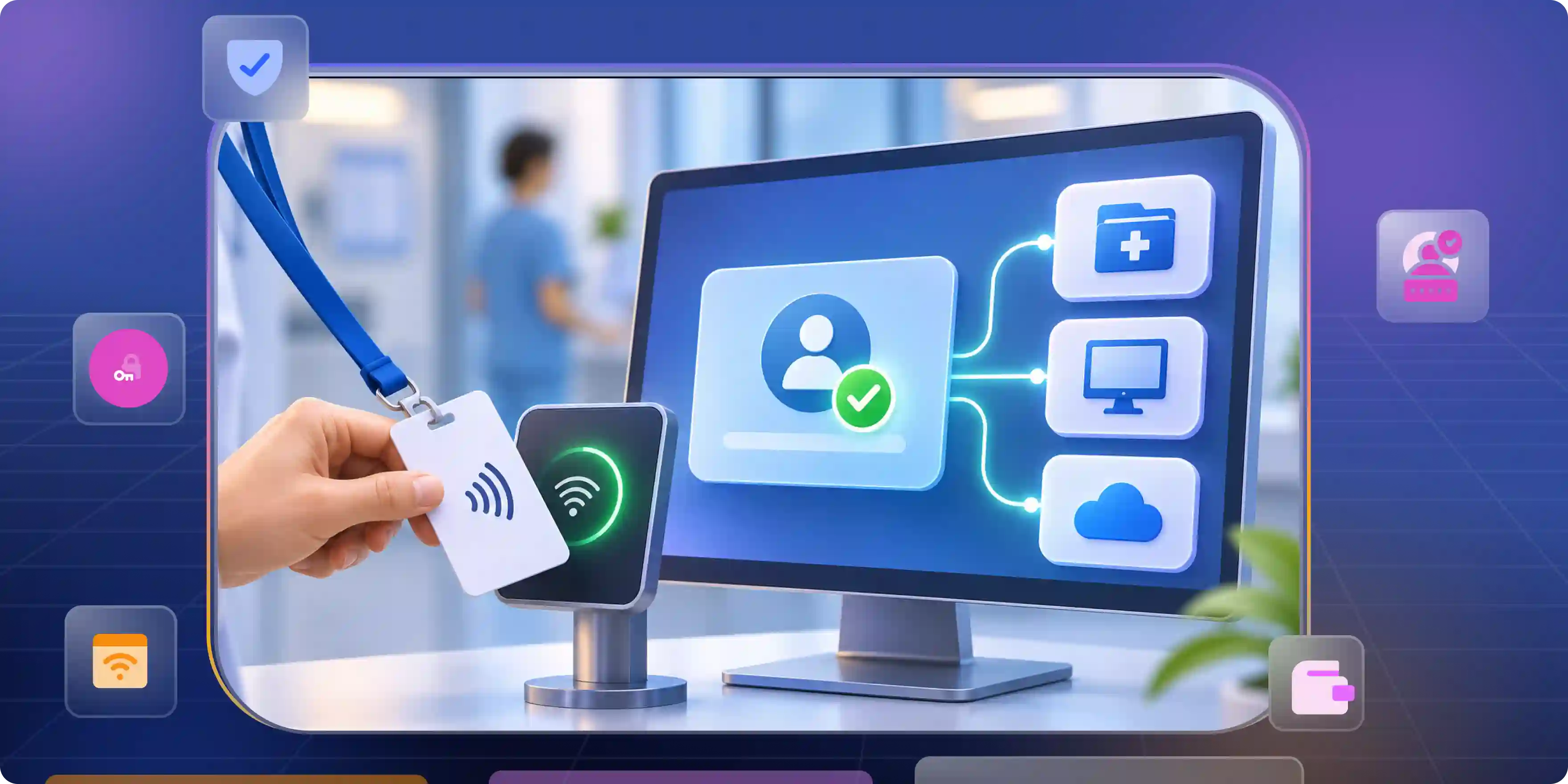
If staff use badges throughout the day, start with tools that support this kind of login. These imprivata onesign alternatives are not all the same, so check how each one works with your computers and apps.
1. Credenti Tap
Credenti Tap is built for badge-based login on shared computers. Staff can tap a supported badge to access a workstation without repeatedly typing their credentials.
- Badge-based access: The product is designed for badge-based authentication on shared workstations.
- Session management: Check how it handles locking, ending sessions, and switching between users.
- Compatibility: Confirm that your current badges, readers, operating systems, virtual desktops, and clinical applications are supported.
2. Okta
Okta is mainly known for identity and application access management. It also offers an NFC authenticator for shared Windows workstations. This allows frontline workers to sign in using an NFC-enabled badge and PIN instead of entering their login details manually. The feature is currently available in Early Access and requires a supported, managed Windows setup.
- NFC authentication: Okta's proximity authentication supports NFC cards as a sign-in method in the documented setup.
- Sign-in requirements: Check the supported Windows configuration, NFC card, reader, and PIN process.
- Clinical workflow: Test whether staff can access the applications they need and switch users without creating delays.
3. HID DigitalPersona Healthcare
HID DigitalPersona Healthcare offers multi-factor authentication and single sign-on for healthcare environments. It helps healthcare professionals securely access shared workstations and clinical applications using biometrics and other strong authentication methods.
- Shared Workstation Authentication: Supports secure access to shared PCs and kiosks, allowing healthcare professionals to sign in using their individual credentials.
- Biometric Authentication: Supports biometric methods such as fingerprint recognition.
- Single Sign-On: Makes it easier for healthcare professionals to access clinical applications from different workstations without signing in to each application separately.
- Virtualized Environments: Supports authentication in virtual desktop environments.
Before choosing it as a OneSign replacement, check its supported authentication methods, hardware requirements, application integrations, and deployment options.
Imprivata Alternatives That Replace the Rest of the Stack
Some hospitals need better app sign-in more than badge login. The tools below can help with identity, single sign-on (SSO), or multi-factor authentication (MFA). However, they do not all replace OneSign's shared-workstation features.
4. Microsoft Entra ID
Already using Microsoft tools across your hospital? Microsoft Entra ID may be a good place to start. It helps manage user identities and control access to apps.
- App access: Manage user identities and control access to supported applications.
- Security controls: Apply sign-in and access rules based on supported factors, such as the user, device, and sign-in risk.
- Microsoft integration: Review how Entra ID works with the Microsoft services and connected applications your hospital already uses.
- Shared workstations: Badge tap and fast user switching may require additional tools or integrations. Test these workflows before treating Entra ID as a full OneSign replacement.
5. Cisco Duo
Cisco Duo focuses on verifying users and protecting access to applications. It is mainly known for multi-factor authentication and device-based security checks.
- Extra sign-in security: Add another authentication step to help protect access to supported systems.
- Device checks: Use supported device security features to help assess access requests.
- Existing identity systems: Review how Duo fits with the identity and authentication tools your hospital already uses.
- Shared-workstation requirements: MFA alone does not provide every feature in OneSign. You may still need another tool for badge login, app SSO, and fast user switching.
6. Ping Identity
Ping Identity offers identity and authentication tools for organizations with many applications and systems. It may suit hospitals that need to connect different parts of their IT setup.
- Identity management: Review the available tools for managing user identities and access across supported systems.
- Application integration: Check how Ping's products connect with your existing applications and identity infrastructure.
- Authentication options: Confirm which sign-in methods are available in the specific product you plan to use.
- Clinical workflow: Ask the vendor to demonstrate badge login, shared-workstation sessions, and user switching if these are essential to your hospital.
7. Infisign
Infisign offers identity and access management features, including SSO and MFA. These can help staff reach approved applications and protect their accounts.
- Single sign-on: SSO lets staff access supported applications through one sign-in rather than entering separate credentials for each app.
- Multi-factor authentication: MFA adds another identity check to help protect accounts.
- Access management: Review how Infisign's available features fit your current applications and access policies.
- Badge-based login: If badge tap and quick user changes are essential, test those features directly. General SSO and MFA support does not prove that Infisign can replace every OneSign workflow.
This guide to SSO and MFA explains how the two methods can work together to protect accounts and simplify access.
Infisign may be worth evaluating if your main goal is identity management, SSO, and MFA. Confirm support for your specific clinical environment before treating it as a complete OneSign replacement.
8. SecureAuth
SecureAuth offers identity and authentication tools for organizations that need to control how users sign in. It may be worth reviewing if your hospital has specific security requirements.
- Authentication methods: Review the ways the proposed product can verify users during sign-in.
- Access controls: Check whether the available controls meet your organization's security requirements.
- Application support: Confirm compatibility with your current applications and identity systems.
- Shared workstations: Ask the vendor to demonstrate badge login, session locking, and user switching. A general feature list is not enough to confirm that these workflows are supported.
SecureAuth should be evaluated against your hospital's actual needs. If rapid badge-based access is essential, make sure the proposed setup supports it rather than assuming it is included.
9. JumpCloud
JumpCloud helps organizations manage user accounts, devices, and access to systems. It may suit hospitals that want to manage more of their IT setup through one platform.
- User management: Manage user identities and access to supported resources.
- Device management: Bring device administration and identity management into the same platform.
- Application access: Review how JumpCloud connects users with the applications and systems your hospital uses.
- Clinical workflow: Device management and app login do not automatically cover badge-based clinical access. Test user switching, session locking, and your main clinical applications before making a decision.
JumpCloud may be useful when user and device management are major priorities. Hospitals should still confirm that the proposed setup can handle the specific needs of shared clinical workstations.
Imprivata Competitors Compared Side by Side
The table below gives you a starting point for comparing the nine options. The right choice depends on the features your hospital needs and the integrations each vendor can support.
Use the comparison to narrow your list, then check each shortlisted product against your requirements.
- If badge tap is the main need: Start with products that clearly support badge-based access to shared computers. Test the actual cards, readers, and sessions your hospital uses.
- If app access is the main need: Compare identity tools based on SSO, MFA, integrations, and the systems already in place.
- If cost is the main concern: Compare the full cost, including setup, hardware, support, training, and any extra products. The licence price alone will not tell you what the switch will cost.
Why LastPass and Keeper Are Not Imprivata Alternatives
LastPass and Keeper are password managers. They help people store and use passwords, but that is different from managing sign-in on shared clinical computers.
- Password management: These tools help users store and manage account passwords. They may be useful as part of a wider security plan.
- Shared-workstation access: Password storage does not automatically provide badge tap, rapid user switching, or clinical SSO.
- Replacement decision: Do not count LastPass or Keeper as full OneSign replacements unless the proposed solution meets your hospital's complete list of requirements.
How to Choose the Right Imprivata Alternative
The best choice is not always the tool with the longest feature list. It is the one that works with your hospital's systems and does not slow staff down.
- Start with the main problem: If badge tap is essential, test products built for shared computers first. If you mainly need SSO or MFA, compare broader identity platforms.
- Test your own applications: Include health records, prescribing tools, older software, and virtual desktops. Check sign-in, sign-out, session locks, and user changes.
- Review biometric needs: If you plan to use fingerprints or face recognition, check device support, staff needs, and privacy requirements. This guide to biometrics in healthcare explains how biometric checks can help confirm identity and reduce access risk.
- Check EPCS requirements: If staff prescribe controlled drugs, review the current DEA EPCS requirements and any applicable state rules. Confirm the sign-in method with your prescribing app provider and compliance team.
- Compare the full cost: Include licences, hardware, setup, staff training, support, and any extra products needed to cover missing features.
Replace OneSign Without Breaking the Clinical Workflow
Start with a small pilot before rolling out the new system across the hospital.
- Test one department: Check badges, readers, devices, and clinical applications.
- Check failures: Prepare backup access for lost badges, reader issues, and network outages.
- Verify sessions: Ensure previous users' data remains protected.
- Keep a fallback: Retain the option to restore the old setup.
- Expand gradually: Roll out only after successful testing.
Infisign UniFed offers customer identity and access management capabilities, including single sign-on (SSO), multi-factor authentication (MFA), passwordless authentication, and user provisioning. These features can be useful for hospitals that manage authentication across patient portals, patient-facing applications, and other digital services.
- Single Sign-On: Supports SSO for connected applications, allowing users to access supported services through a single authentication process.
- Multi-Factor Authentication: Offers additional authentication methods to help protect user accounts.
- User Provisioning: Supports SCIM-based provisioning and identity synchronization across connected applications.
- Healthcare Workforce Access: UniFed's documented customer identity features do not confirm support for clinical shared-workstation workflows. Hospitals considering it for workforce access should separately verify support for badge authentication, fast user switching, session management, and compatibility with clinical applications.
See how Infisign could fit your hospital’s identity and access needs. Visit the Infisign demo page to schedule a meeting with the team, discuss your requirements, and explore the product firsthand.
FAQ
What is tap and go authentication?
Tap and go authentication lets staff use a badge or approved credential to open a workstation quickly. It can also lock or switch sessions when staff move away across departments.
Can Microsoft Entra ID replace Imprivata?
Sometimes, but not by itself. Microsoft Entra ID manages identity, app access, and authentication. Hospitals must verify whether their setup supports badge tap, fast user switching, and clinical workflows before buying.
Does Okta support badge tap login on shared workstations?
Okta supports NFC card authentication in certain setups. Check the supported Windows setup, card, reader, and PIN process, then test it on your shared clinical workstations before rollout.
What should I check for EPCS when replacing Imprivata?
Check that the prescribing app and sign-in method meet current DEA EPCS rules, including identity checks, two-factor authentication, user permissions, and audit records. Confirm state rules with your compliance team.
How long does it take to migrate off Imprivata OneSign?
Timing depends on the number of workstations, apps, readers, and tests needed. Run a pilot first, then move in stages with support and a rollback plan.


