


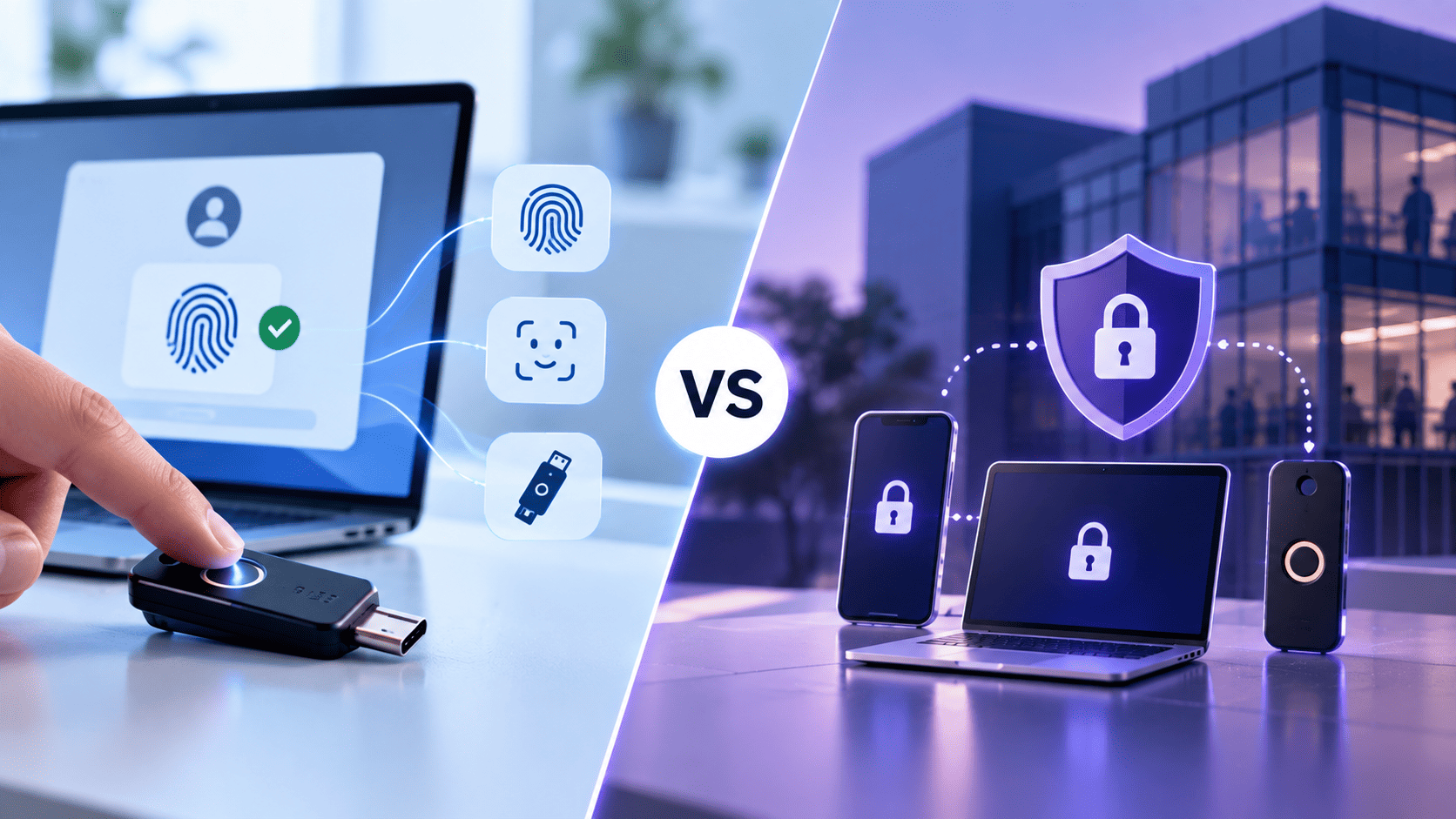

When security teams want to remove passwords across a business, they get confused by technical names. Seeing how modern setups like clipboardhealth passkeys FIDO2 WebAuthn handle login safety shows that these names are just different parts of one system.
This simple guide explains what both standards do and how to pick the best options for your workplace without getting lost in technical words.
WebAuthn and FIDO2 Are Not Competing Standards. Here Is What They Actually Are
FIDO2 is a collection of authentication standards that combines the W3C WebAuthn standard with the FIDO Alliance’s Client to Authenticator Protocols (CTAP). Together, these technologies enable passwordless, two-factor, and multi-factor authentication by using public-key cryptography to verify user identities securely.
The Role of WebAuthn in Your Browser
WebAuthn sits inside modern web browsers like Chrome, Safari, and Edge. When a website wants to log you in, it calls WebAuthn. Exploring FIDO2 passwordless authentication clarifies how this browser code handles login requests, talks to your device, and creates key pairs to keep user accounts safe.
- Safe Domain Binding: Credentials created for one website cannot be used on fake phishing pages. The browser checks the web address before sending any login data.
- Direct Browser Communication: The browser handles security prompts directly without showing private keys to the website. Users approve logins through system popups that website code cannot see.
- Standardized Web Rules: Every major browser follows the same basic rules for asking users to log in. Tech teams write login code once and it works on all devices.
The Role of CTAP2 in Your Hardware
CTAP2 stands for Client to Authenticator Protocol. It operates below the browser layer. When you plug a physical USB key into your computer or tap an NFC key against your phone, CTAP2 allows the browser to talk to that physical key.
- Hardware Communication Link: It sends signals between the web browser and the security chip inside the physical key. This rule translates web requests into messages that physical keys understand.
- Local Verification Steps: Depending on the authenticator and how it is configured, users may approve an authentication request using a touch, PIN, biometric check, or another supported method of user verification.
- Protected Token Storage: For hardware security keys that are bound to a specific device, the private key stays securely stored within the authenticator and is never shared with the website. Synced passkeys use a different approach, allowing credentials to be securely synchronized across a user's trusted devices while maintaining strong security protections.
Why the Usual Approach Falls Short
Many safety teams try to stop account theft by adding text message codes or phone push alerts on top of passwords.
- Phishing Weakness: One time codes sent by text message can easily be copied onto fake login pages by attackers. Bad sites capture the code quickly and use it on the real site before it expires.
- Notification Spam Risks: Attackers flood workers with many phone alerts late at night until someone clicks approve by mistake. This trick wears down worker patience and causes accidental account access.
- Shared Secret Vulnerabilities: Passwords and temporary codes stay saved on company servers where leaks can happen. If a company database gets hacked, attackers can steal saved passwords. Modern math key setups remove the need to save passwords on central servers.
The Three Decisions Hiding Behind WebAuthn vs FIDO2
When tech leaders think they are choosing between WebAuthn and FIDO2, they are making three practical choices about how employees work every day.
Platform vs Roaming Authenticators
You must decide whether employees will log in using scanners built into laptops or external keys they carry around. Platform options like Apple Touch ID or Windows Hello are very easy to use for daily desk work. Roaming options like USB security keys offer portable protection for employees who switch computers often.
- Built In Convenience: Platform options let workers log in fast using fingerprint or face scanners built into laptops. Employees do not need to carry extra items or plug hardware into ports.
- Flexible Portable Keys: Roaming security keys travel easily between different desktop computers and mobile phones. Workers can carry a single USB key and use it on any computer without extra setup.
- Workflow Alignment: Picking the right hardware depends on whether staff work at fixed desks or move around. Mixing both options across different job roles gives companies needed flexibility.
Hardware Keys vs Synced Passkeys
You should understand the difference between device-bound credentials and passkeys. Device-bound credentials remain tied to a specific device, while passkeys can be securely synchronized across a user's devices through a supported passkey provider.
Learning to implement passkeys helps teams set up cloud backups that restore automatically across personal accounts while keeping hardware-bound protection for sensitive admin roles.
- Cloud Synced Access: Passkeys back up automatically across personal cloud accounts to prevent lockout problems. If a worker breaks their phone, login passkeys show up on their new phone right away.
- Hardware Locked Protection: Physical security chips keep keys inside one device so keys cannot be copied. The key data cannot be backed up to cloud services or moved to other hardware.
- Risk Level Balancing: Companies can use synced passkeys for general staff while requiring hardware keys for system admins. This double policy keeps daily work simple while placing strict rules around sensitive data.
Attestation Requirements for Your Network
You must decide if your login server needs to verify the exact model of key being used. Strict attestation rules allow companies to block personal devices and only accept company issued security keys.
- Device Identity Checks: Attestation can provide cryptographic proof about an authenticator. Depending on the authenticator and its attestation settings, it can help an organization identify the authenticator type and establish trust in approved or known authenticators.
- Unapproved Hardware Blocking: Systems can block personal keys that do not have company approval. Admins can enforce an approved vendor list across the whole business.
- Compliance Policy Control: For organizations with specific security or compliance needs, attestation and authenticator certification can help verify that authentication devices meet defined organizational or regulatory requirements.
Where U2F Fits and Why Your Existing Security Keys Still Matter
To see where older keys fit, you can compare U2F vs FIDO2 historically. U2F was the first open standard for security keys, built to work as a second step alongside passwords. CTAP1 is another name for that older U2F language. FIDO2 expanded the FIDO authentication framework by combining WebAuthn with CTAP. CTAP1 is the updated name for the earlier U2F protocol, while CTAP2 introduced additional features and capabilities that support FIDO2 authentication.
- Backward System Compatibility: Existing FIDO U2F security keys can often be supported through CTAP1 in compatible FIDO implementations, mainly for second-factor authentication. However, organizations should confirm that their identity platform and client environment support CTAP1 before assuming that existing keys can continue to be used.
- Protection For Legacy Hardware: Companies can update software rules without throwing away physical keys. Workers can keep using their familiar USB keys while the main system adds passwordless features for newer laptops.
- Gradual Upgrade Pathways: Teams can roll out full passwordless features slowly while keeping old security tools active. Legacy U2F keys give strong second step safety until the company is ready to move everyone to passwordless login.
What FIDO2 Authenticators Look Like in a Real World
In daily business operations, FIDO2 authenticators come in several physical shapes based on how employees work.
Built In Fingerprint and Face Scanners
Modern laptops and mobile phones come with hardware security chips built directly inside them. When users log in using Apple Touch ID or Windows Hello, the device uses FIDO2 web authentication behind the scenes.
- Fast Daily Logins: Employees tap a sensor or look at a camera to log in fast. They no longer need to remember long passwords or type short codes.
- No Extra Hardware Costs: Built in tools use laptop and phone parts that you already own. Companies do not need to buy or ship separate physical USB keys to remote workers.
- Local Biometric Storage: Biometric data stays locked inside local hardware chips and never travels over networks. The website only receives a mathematical message that the right person is present.
External Security Tokens and Hardware Keys
Physical keys plug directly into USB ports or connect wirelessly through NFC. These devices hold private keys inside secure chips that cannot be copied or read by bad software.
- High Security Chip Isolation: Keys create mathematical answers without showing secret data to computer software. Even if a computer gets infected with malware, the physical key stays safe.
- Ideal For Shared Laptops: Call center staff and shift workers can share computers safely using personal USB keys. Each worker carries their own key and plugs it in when starting work.
- Physical Tap Requirements: Users must touch the key button to confirm presence and stop remote attacks. Automated software scripts cannot fake a physical touch on the key sensor.
Where FIDO2 Deployments Break After the Pilot Succeeds
Real challenges happen when you expand the rollout to thousands of non technical workers across different offices.
- Account Recovery Bottlenecks: Losing physical keys creates support delays if backup steps are weak. Help desks get flooded with access requests when workers lose their security keys.
- Legacy Software Limitations: Older internal software tools often lack built in browser support, making traditional desktop apps fail to recognize WebAuthn requests easily. Learning to update legacy apps allows companies to use gateway tools and connect older software to modern login systems without causing sudden downtime.
- Fleet Operating Variations: Different computer software builds and browser updates cause unexpected support problems. A login flow that works on one computer might act differently on another device.
- Personal Device Objections: Workers often hesitate to connect work safety rules to personal mobile phones. Employees express privacy concerns about using personal cloud accounts for work logins.
What to Ask Your Identity Platform Before You Commit to FIDO2
Before picking a login provider for your passwordless project, ask clear simple questions to test their system features.
- Emergency Account Recovery: Ask how the system restores worker access safely when main keys are lost. The recovery steps must stop unauthorized account takeovers while keeping recovery simple for real workers. Check if the vendor offers simple self service recovery features.
- Strict Attestation Enforcement: Confirm if the platform can block unapproved consumer security keys automatically. Your safety team needs controls to limit logins to approved key makers.
- Legacy Tool Integration: Ask how non browser applications like remote desktop tools get secured. The platform should offer tools that extend modern passwordless logins to older company software.
- Offboarding Access Revocation: Ensure the system turns off all physical key access instantly when a worker leaves the company. Removing a user from the main system must block all registered keys right away.
Start Your FIDO2 Rollout on a Platform That Already Supports Both
Moving to passwordless logins requires a system that handles both browser rules and hardware keys easily. Selecting a platform that supports WebAuthn and full FIDO2 features gives you complete flexibility across all office roles.
Choosing the right authentication system requires a setup that unifies browser standards and physical security keys without adding extra hassle for employees. Platforms like Infisign UniFed bring WebAuthn and FIDO2 together into a single zero trust layer.
This approach allows businesses to roll out passwordless logins, enforce dynamic access rules, and manage both built in biometrics and external hardware keys from one platform.
Key products and features offered by Infisign include:
- UniFed Passwordless SSO and Passkeys: Combines WebAuthn and FIDO2 standards to deliver phishing resistant logins using built in device biometrics or physical security tokens.
- Adaptive Risk Based MFA: Continuously evaluates user context, location, and device signals to adjust authentication checks in real time.
- Zero Trust Identity Governance: Centralizes control over user permissions, providing automated access reviews and clear audit tracking across cloud and legacy apps.
Schedule a personalized walkthrough with Infisign UniFed today. See how passwordless multi tenant access keeps your client workspaces secure.
FAQ
1. Is WebAuthn the same as FIDO2?
No, they are not identical. FIDO2 is the overall security standard created by the FIDO Alliance. WebAuthn is simply the browser API part inside FIDO2 that lets websites talk to browsers.
2. Is a passkey the same thing as FIDO2?
Not completely. FIDO2 is the core security technology standard. A passkey is a user-friendly login credential built using FIDO2 standards so users can sign in easily without passwords.
3. Are my existing U2F security keys compatible with FIDO2?
Yes, they still work. FIDO2 servers support older U2F keys as a second login step. You do not need to throw away your existing physical keys when upgrading system software.
4. Can you deploy FIDO2 without buying hardware security keys?
Yes, absolutely. You can use laptops and mobile phones that have built-in fingerprint sensors or face scanners. These built in options work with FIDO2 without purchasing external USB keys.
5. What happens if a user loses the device holding their passkey?
Synced passkeys can be accessed on a new device after the user signs in to their supported passkey provider and completes the necessary account or device verification steps. The recovery process may vary depending on the provider and platform being used.


